
Bans
Stop someone purchasing from your store, by account, name, Steam ID, IP or payment email.
A ban prevents someone buying from your store. It does not take away what they already bought.
Dashboard → Access → Bans. Needs ban_read.
Creating a ban
- Go to Access → Bans.
- Click Create.
- In Create a Ban:
- Enter a reason. Internal only, never shown to the customer.
- Optionally set an expiration date. Blank means permanent.
- Select the identity type.
- Click Add Identity to ban several identifiers at once.
- Click Create.
The Bans page does not pre-fill customer information, so you have to type the identifier yourself. Banning from the customer's own page is usually easier.
Identity types
| Type | Bans | Notes |
|---|---|---|
| Customer | A specific customer account | The normal choice. |
| Customer Name | Anyone using that name | Not recommended. Names change, so it misses the target and catches innocent people. |
| Steam ID | Their Steam account | Strong. Survives name changes. |
| IP Address | Everyone on that IP | Use sparingly. Shared and dynamic IPs catch bystanders. |
| Payment Email | The email attached to a payment method | Stops a banned customer creating a new account and paying with the same card. Works across all payment processors. |
Payment Email is the one that stops repeat offenders. Account and Steam bans are defeated by making a new account; the payment method is harder to change, and someone committing chargeback fraud usually has one card. For a serious case, add several identities to one ban: the customer, their Steam ID, and their payment email.
What a ban does and does not do
| ✅ Blocks new purchases | |
| ✅ Shows a red banner on their customer page for staff | |
| ✅ May show them an error at checkout, depending on your template | |
| ❌ Does not revoke existing purchases | Revoke manually from their inventory |
| ❌ Does not cancel active subscriptions | Cancel them manually in Subscriptions |
| ❌ Does not apply to other PayNow stores | Bans are per store |
A ban on its own leaves an active subscriber still being billed and still holding their perks. A chargeback case usually needs three actions: ban the customer, ideally including their payment email; revoke the items from their inventory; and cancel any active subscriptions. Doing only the first is the common mistake, and it leaves them with everything.
Viewing and managing bans
The Bans page lists banned identities, the reason, the ban ID, and when it was last updated. Filter using Ban Identifier to search for a customer, Steam ID or IP.
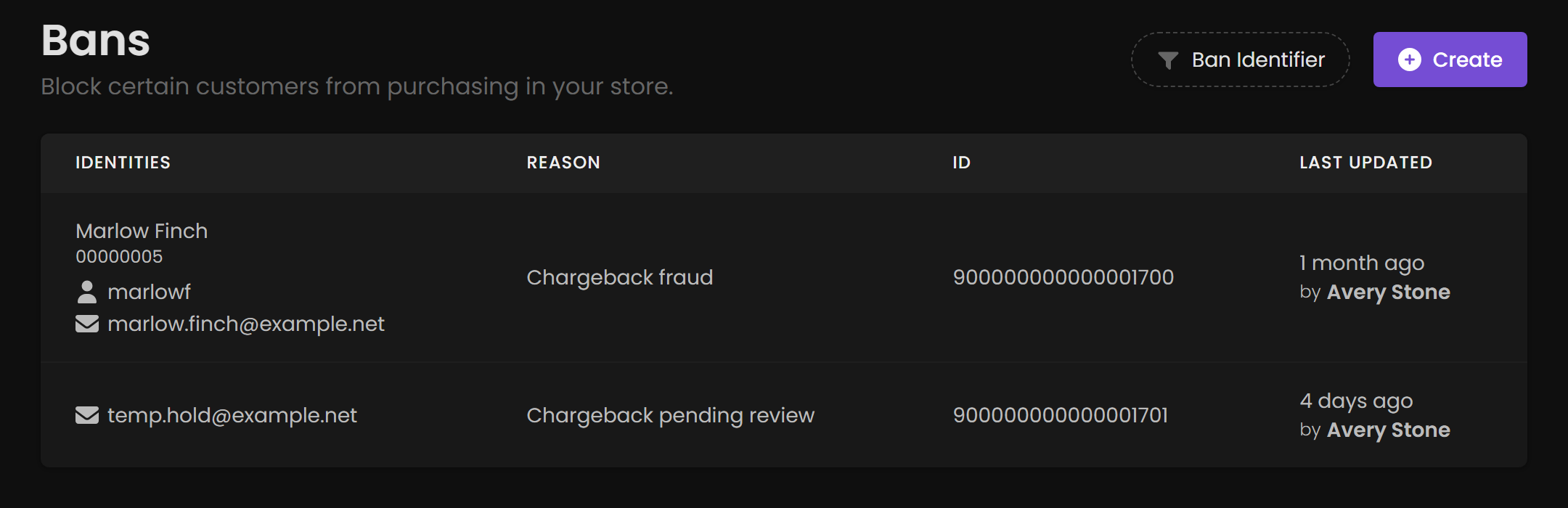
To change or lift a ban, find it in the list and click View Ban. In Edit Ban you can modify the reason, expiration or identities, or click Unban and confirm. Click Update to save. Bans with an expiration date lift automatically when they expire.