
Managing Customers
The customer detail page, covering stats, inventory, orders, subscriptions, metadata and bans.
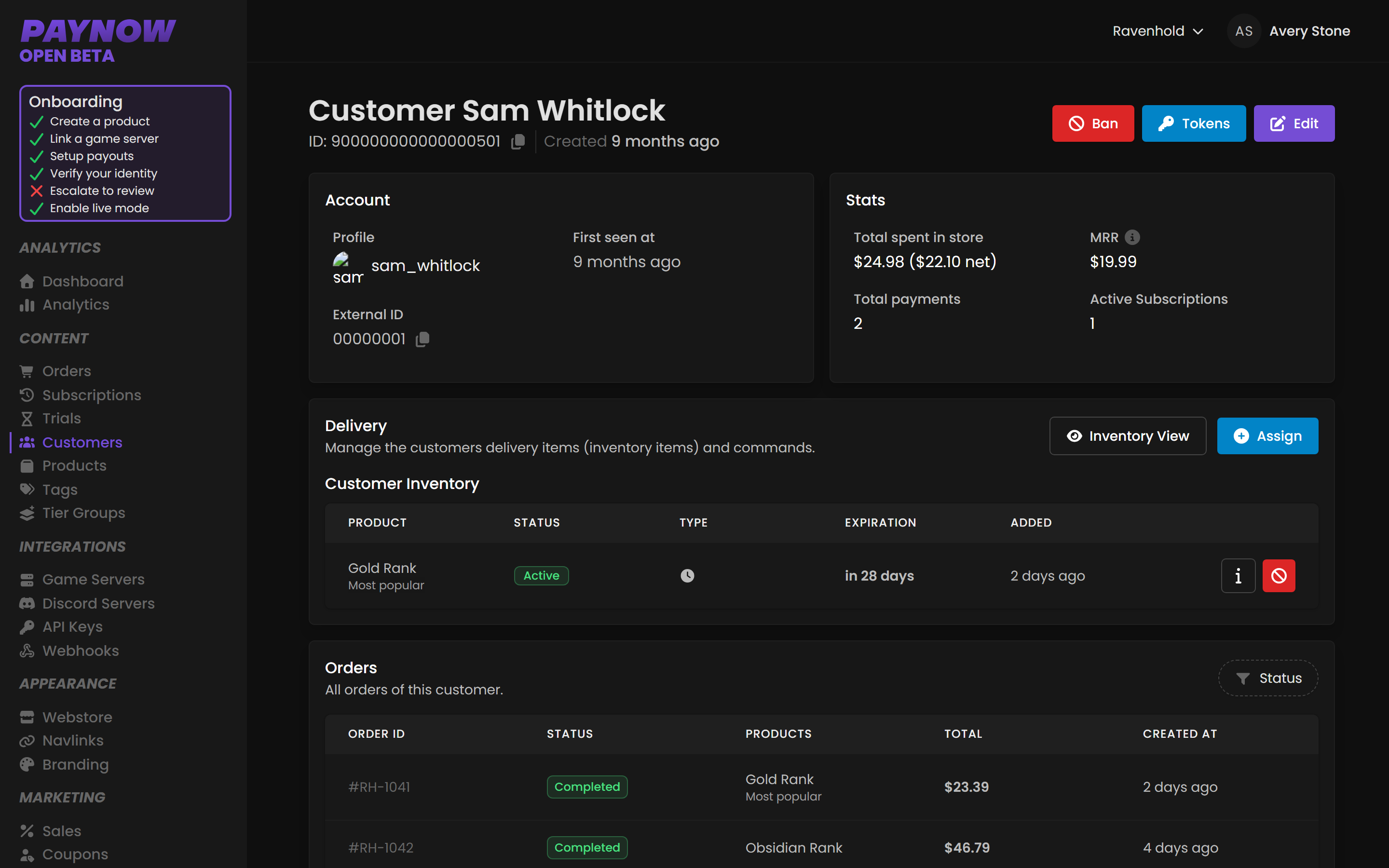
Everything about one person comes together on the customer detail page. If you handle support, this is where you'll live.
Dashboard → Content → Customers → (a customer). Needs customer_read.
Header
| Field | What it is |
|---|---|
| Profile | Username and profile link, where available. |
| External ID | Platform-specific identifier: SteamID64 in Rust, UUID in Minecraft. |
| First Seen At | When they first appeared on your store. |
Stats
| Stat | What it means |
|---|---|
| Total Spent in Store (Net) | Total spend after fees and refunds. |
| MRR | Monthly recurring revenue from their active subscriptions. |
| Total Payments | Count of completed payments. |
| Active Subscriptions | How many subscriptions they currently hold. |
Read these before answering a complaint: a long-tenured customer with real MRR and someone disputing their first $2.99 deserve different answers.
Actions
Three buttons: Ban, Manage Tokens and Edit Customer. Ban stops them purchasing and is covered below. Edit Customer updates their name and platform ID (SteamID64, UUID), which is how you correct a mistyped one.
Inventory
Everything the customer owns or previously owned, active and expired, one-time and subscription. Inventory is about access; Orders is about transactions. An expired package shows as Expired here while the original order stays in Orders permanently. "Do they still have VIP?" is answered here.
Assign Product manually grants a product. For many customers at once, use Bulk Assigning Products.
Package action buttons
Which buttons appear depends on the package's state.
| Button | What it does |
|---|---|
| Discord | Opens the Discord Linking UI so you can attach a Discord User ID to that inventory item. |
| Info (ℹ️) | Opens the Command UI: every command tied to the package, which game server it ran on, the exact command, and its execution status. |
| Revoke (red) | Removes the active item, taking away access. |
Reach for Info before you go looking at server logs.
Revoking runs the product's On Expire stage. It is the expiry path, triggered by hand, so whatever you configured to happen on expiry is what happens on revoke. See Commands & Placeholders.
Revoke has two limits, and both follow from that. An already-expired package can't be revoked; the button is gone, because the expiry already ran. And a non-expiring package can only be revoked if it has an On Expiry Action set, since without one there is nothing for revoke to run.
Orders
Every order this customer has placed: Order ID, Product Name, Price, Status and Date. Statuses are Created, Completed and Chargeback. Filter with the control in the top right; click any order for the full breakdown in Orders.
Subscriptions
All subscriptions, active and cancelled: Subscription ID, Product, Amount, Status, Billing Period and Created. Filter by Active, Canceled or Created; click through for detail in Subscriptions.
Metadata
Key-value pairs attached to the customer, for integrations, custom commands and tracking. Most often used to link external accounts like Discord.
| Field | Example |
|---|---|
| Key | DiscordID, DiscordUsername |
| Value | The corresponding data |
Click Add Field to add one. To remove a field, clear both Key and Value and press Update. There is no delete button.
Banning a customer
- On the customer page, click Ban.
- Enter a reason, internal only and never shown to the customer.
- Optionally set an expiration date. Leave blank for a permanent ban.
- Choose the identity type to ban:
| Identity | Bans | Notes |
|---|---|---|
| Customer | The specific account | The usual choice. |
| Customer Name | Anyone using that name | Not recommended. Names change, so this both misses the target and catches innocent people. |
| Steam ID | Their Steam account | Strong. Survives name changes. |
| IP Address | Everyone on that IP | Use sparingly. Shared and dynamic IPs catch bystanders. |
| Payment Email | The email on their payment method | Stops them making a new account and paying with the same card. Works across all payment processors. |
- Click Create. Use Add Identity to ban several identifiers at once.
A large red banner then appears at the top of their page with the ban ID and a View Ban button.
Banning stops future purchases. It does not remove existing ones. A banned customer keeps everything they already bought unless you revoke it from their Inventory. A chargeback needs two actions: ban them, and revoke the item. Doing only the first leaves them with the goods and none of the cost.
Viewing, updating or removing a ban
Click View Ban in the red banner. In Edit Ban you can update the reason, expiration and identities, or click Unban. Bans with an expiration date lift automatically. More in Bans.