
Adaptive Currency
Show and charge prices in your customer's local currency, at no cost and no FX risk to you.
Adaptive Currency shows customers prices in their own currency and lets them pay in it. A store priced in EUR shows USD to a customer browsing from the US. It is on by default and free on every plan, including Free.
Dashboard → Store → Settings → Payment Settings. Needs store_update.
How it works
PayNow detects the customer's country, from their IP address or from a country header your integration passes, and converts prices into that region's currency. At checkout the customer can switch back to your base currency at any point.
What it changes
| Effect | Why |
|---|---|
| Higher payment approval rates | Card networks approve local-currency charges more often than cross-currency ones. You never see the declines you avoided. |
| No foreign transaction fee for your customer | Their bank adds no FX charge, and PayNow's rates beat most banks'. |
| Regional payment methods appear | iDEAL, Klarna, Cash App Pay and others can show for customers in their region even when your base currency differs. |
| Less hesitation | Familiar numbers in a familiar currency. |
Who carries the exchange-rate risk
PayNow does, entirely. If rates move between checkout and settlement, or on refunds and renewals, PayNow absorbs the difference. There is no extra fee to you: the conversion cost is built into the rate shown to the customer, and your payouts still settle in your base currency.
Supported currencies
| Currency | Region |
|---|---|
| USD | United States |
| GBP | United Kingdom |
| EUR | Eurozone |
| CAD | Canada |
| AUD | Australia |
More are added over time.
Customers outside a supported region see your base currency, exactly as they would with the feature off.
Configuration
Two controls in Settings → Payment Settings, both on by default.
| Toggle | What it does |
|---|---|
| Enable Adaptive Currency | Master switch. Off disables the feature entirely. |
| Show Adaptive Currency on storefront | Whether customers see local currency on the storefront by default. Off means the storefront shows your base currency, but customers can still switch at checkout. |
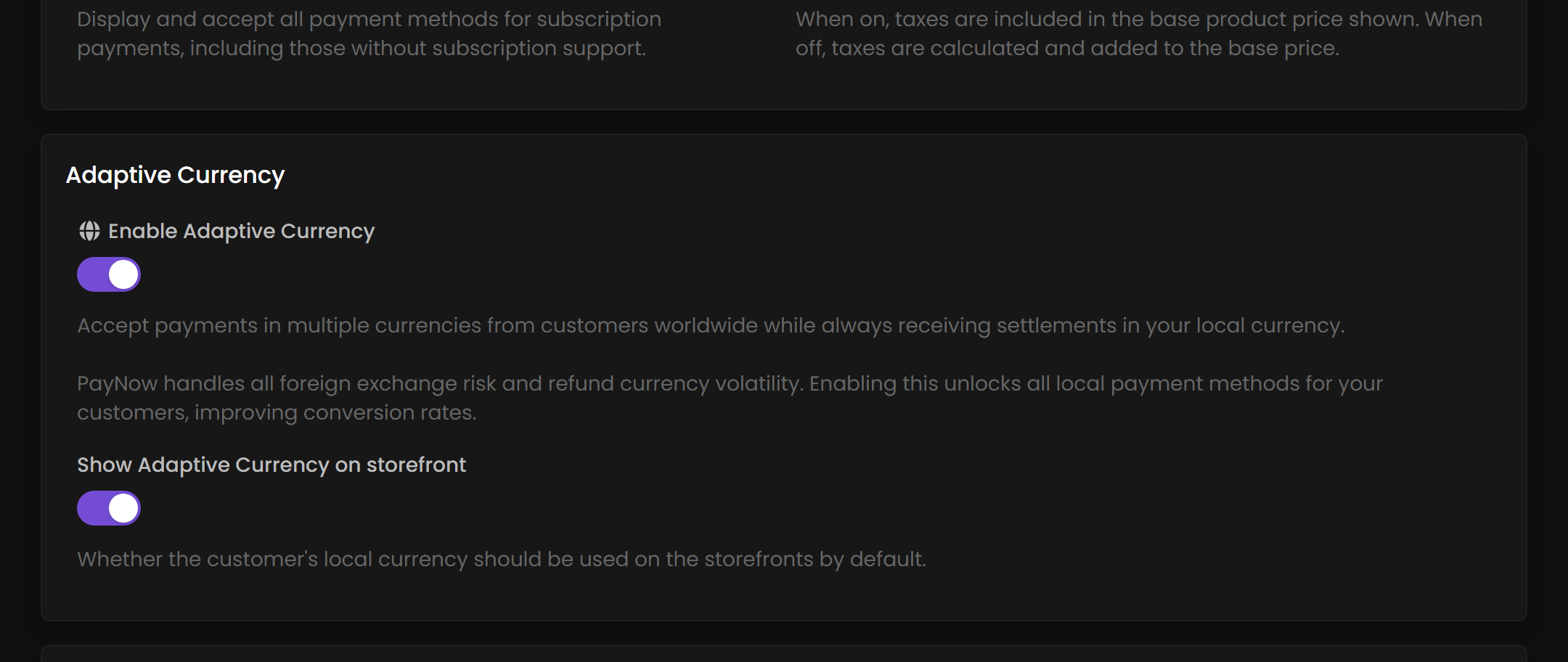
Turning the storefront toggle off costs conversions. Customers meet a different number at checkout than the one that persuaded them. If you want one advertised price for announcements and marketing, keep both toggles on and quote your base currency with a note that local pricing is available.
Custom storefronts
Adaptive Currency works automatically provided you pass the recommended country header documented in the API reference.
On pages showing past order or subscription amounts, such as an order history page, use the presentment_ fields on the order and subscription objects. Customers then see the amount they actually paid, in the currency they paid it in.