
Webstore
Your PayNow-hosted storefront, its address, its custom domain, its templates and its modules.
The Webstore page controls the storefront PayNow hosts for you: where it lives, what it looks like, and which dynamic components appear on it. Go to Webstore in the top right opens your live storefront.
Dashboard → Appearance → Webstore. Needs webstore_read.
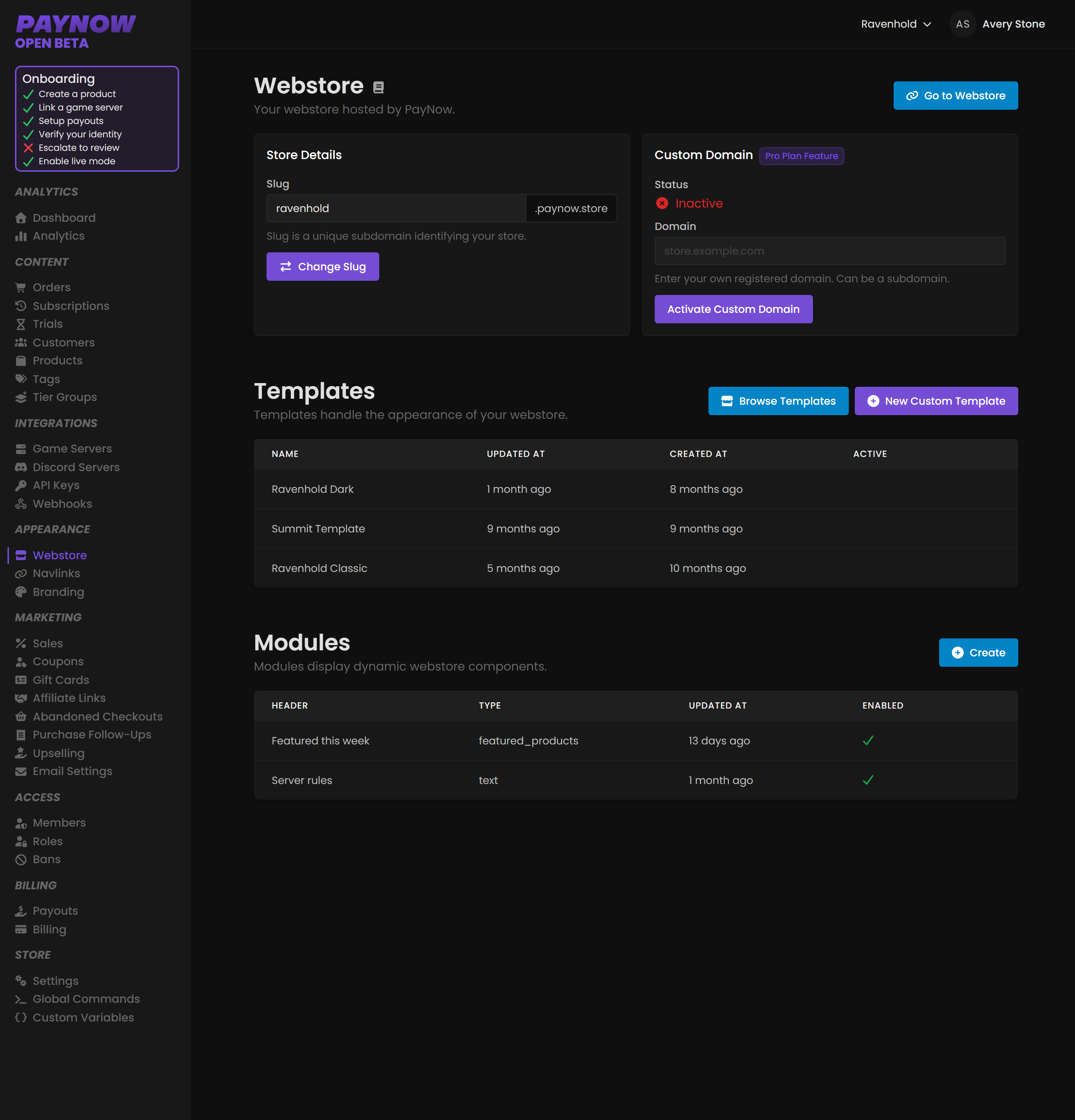
Store details
Your slug is a unique subdomain identifying your store. It gives you an address of the form:
<slug>.paynow.storeYou can change it with Change Slug.
Changing your slug changes your storefront address. Discord pins, social posts, in-game messages, YouTube descriptions and bookmarks all point at the old one. If you want a different address, set up a custom domain instead and leave the slug alone.
Custom domain
Point your own domain at your storefront, store.yourcommunity.com for example. Both a root domain and a subdomain work. This is a Pro Plan feature; on other plans the section is visible but cannot be activated.
- Enter your registered domain in the Domain field.
- Click Activate Custom Domain.
- Follow the DNS instructions shown.
- Wait for Status to change from Inactive to active.
DNS changes are not instant; give propagation time before assuming something failed.
A custom domain buys more than vanity. Customers are more willing to enter card details on an address they recognise as yours, and you can change hosting later without changing it.
Templates
Templates handle the appearance of your webstore. The table lists each one with when it was created and updated, and which is Active. Only one is live at a time. Browse Templates starts you from a pre-built design, and New Custom Template builds your own. See Templates for the full workflow and Editing Template Files for the Twig reference.
Modules
Modules display live data rendered into your storefront, rather than static content you maintain by hand. The table lists each module's header, type, when it was updated, and whether it is enabled.
| Module | Shows |
|---|---|
| Featured Product | A single promoted product |
| Payment Goal | Progress toward a revenue target over a period |
| Recent Payments | Recent orders, with configurable detail |
| Top Customer | Customers ranked by spend, average spend, or payment count |
| Gift Card Balance | A gift card's code, balance, starting balance and expiry |
| Text Box | Free HTML content under a header |
Click Create to add one. Each module has a header plus type-specific settings: Payment Goal takes a Goal Target, a Period and bar options, while Top Customer takes a Field, a Period and a customer limit.
Top Customer publishes spend-related data about your players, so check the Display spend amount option matches what your community expects.
Modules render wherever your template outputs them. See Editing Template Files.